Replace page with clean, standard MediaWiki landing page; remove custom layout and inline CSS
(6 intermediate revisions by one other user not shown)
Line 1:
Line 1:
<div id=swordborder style="
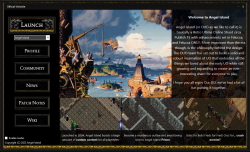
[[File:launcherss.png|thumb|right|250px|link=https://drive.google.com/file/d/1Rsur1WoEhkvmTMB3b6iFpHn_4Ar97WGQ/view?usp=sharing|The launcher's current interface.]]
[[File:totoparrow2.png|class=bottom|link=#top|Back to Top]]
[[File:totoparrow1.png|class=top|link=#top|Back to Top]]
</div>
<div id=menubutton style="
left:-110px;
top: 450px;">
[[File:tobotarrow2.png|class=bottom|link=#footer|Bottom of Page]]
[[File:tobotarrow1.png|class=top|link=#footer|Bottom of Page]]
</div>
{{#css:
#p-logo { display:none; }
#cf {
position:absolute;
margin:0 auto;
width:238px;
}
#swordborder {
position:absolute;
margin:0 auto;
width:1350px;
}
#menubutton {
position:absolute;
margin:0 auto;
width:200px;
}
#cf img {
position:absolute;
left:0;
-webkit-transition: opacity 0,2s ease-in-out;
-moz-transition: opacity 0,2s ease-in-out;
-o-transition: opacity 0,2s ease-in-out;
transition: opacity 0,2s ease-in-out;
}
#swordborder img {
position:absolute;
left:0;
-webkit-transition: opacity 0,2s ease-in-out;
-moz-transition: opacity 0,2s ease-in-out;
-o-transition: opacity 0,2s ease-in-out;
transition: opacity 0,2s ease-in-out;
}
#menubutton img {
position:fixed;
left:1;
bottom:1;
-webkit-transition: opacity 0,2s ease-in-out;
-moz-transition: opacity 0,2s ease-in-out;
-o-transition: opacity 0,2s ease-in-out;
transition: opacity 0,2s ease-in-out;
}
#cf img.top:hover {
opacity:0;
}
#menubutton img.top:hover {
opacity:0;
}
}
}}
</div>
[[File:launcherss.png|thumb|right|250px|link=https://drive.google.com/file/d/1Rsur1WoEhkvmTMB3b6iFpHn_4Ar97WGQ/view?usp=sharing|The launcher's current interface.]]
* '''[https://drive.google.com/file/d/1Rsur1WoEhkvmTMB3b6iFpHn_4Ar97WGQ/view?usp=sharing Download the Launcher]'''
* '''<span style="font-size:110%">[https://drive.google.com/file/d/1Rsur1WoEhkvmTMB3b6iFpHn_4Ar97WGQ/view?usp=sharing Download the Launcher]</span>'''
Click the link to visit the download portal for our launcher! Once there, click the download button (down-facing arrow) in the top left area of the screen. For complete installation instructions, visit [[Install & Connect]].
Click the link to visit the download portal for our launcher! Once there, click the download button (down facing arrow) in the top left area of the screen. For complete installation instructions, visit [[Install & Connect]]
Click the link to visit the download portal for our launcher! Once there, click the download button (down-facing arrow) in the top left area of the screen. For complete installation instructions, visit Install & Connect.