Music Box: Difference between revisions
No edit summary |
No edit summary |
||
| Line 17: | Line 17: | ||
Alexa, loop | Alexa, loop | ||
You never need a song's whole name: a few words of it are enough, and the music box works out which song you mean, using Angel Island's | You never need a song's whole name: a few words of it are enough, and the music box works out which song you mean, using Angel Island's Intelligent Dialogue System. ''Alexa, help'' lists every command. | ||
To see what music is available, say ''list'': | To see what music is available, say ''list'': | ||
| Line 83: | Line 83: | ||
| remove ''song'' (or ignore) || Takes a song out of your playlist. | | remove ''song'' (or ignore) || Takes a song out of your playlist. | ||
|- | |- | ||
| add ''song'' || Puts a removed song back. | | add ''song'' || Puts a removed song back. ''add'' alone is the same as ''submit''. | ||
|- | |- | ||
| refresh || Adds new free songs to your library. This also happens on its own. | | refresh || Adds new free songs to your library. This also happens on its own. | ||
| Line 91: | Line 91: | ||
| sales || Your sales as a composer (see [[#Getting Paid|Getting Paid]]). | | sales || Your sales as a composer (see [[#Getting Paid|Getting Paid]]). | ||
|- | |- | ||
| submit || Publishes a song (see [[#Instructions for Composers|Instructions for Composers]]). | | submit (or add) || Publishes a song (see [[#Instructions for Composers|Instructions for Composers]]). | ||
|- | |- | ||
| remaster || Asks to replace one of your approved songs with a new version. | | remaster || Asks to replace one of your approved songs with a new version. | ||
| Line 104: | Line 104: | ||
# Write your song in a composition book and transcribe it into [[Sheet Music]]. Set its name and price at the top of the composition with # Song: and # Price: (a price of 0 makes it free). See [[Sheet Music#Settings|Settings]] for every setting. | # Write your song in a composition book and transcribe it into [[Sheet Music]]. Set its name and price at the top of the composition with # Song: and # Price: (a price of 0 makes it free). See [[Sheet Music#Settings|Settings]] for every setting. | ||
# Single-click your music box and choose '''Add''', or say ''submit''. Target your sheet music. | # Single-click your music box and choose '''Add''', or say ''submit'' (or just ''add''). Target your sheet music. | ||
https://game-master.net/images/wiki/musicbox/musicbox8.png | https://game-master.net/images/wiki/musicbox/musicbox8.png | ||
| Line 110: | Line 110: | ||
https://game-master.net/images/wiki/musicbox/musicbox9.png | https://game-master.net/images/wiki/musicbox/musicbox9.png | ||
Your song is now in the shard-wide library, not just your own music box, and goes into a review queue. Staff review songs to keep out offensive content, not to judge their quality (songs can have lyrics). Once approved, it appears for every player: free songs in their libraries, premium songs as red titles they can sample and buy. | Your song is now in the shard-wide library, not just your own music box, and goes into a review queue. Staff review songs to keep out offensive content, not to judge their quality (songs can have lyrics). While it waits, you can still play it on your own music box: it is in your playlist, and the box says it is pending approval. Once approved, it appears for every player: free songs in their libraries, premium songs as red titles they can sample and buy. | ||
Each approved song earns you [[Music Composition#Music Karma|Music Karma]], and so does every sale and every play. | Each approved song earns you [[Music Composition#Music Karma|Music Karma]], and so does every sale and every play. | ||
Revision as of 10:38, 5 November 2026
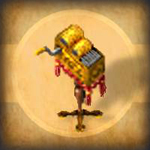
The Music Box plays music in your home on voice command. It holds the shard's library of player compositions: free songs, songs you have bought, and your own. Composers publish their songs to it and are paid when players buy them.
General Usage
Buy a music box from any Bard NPC, lock it down in your home, and double-click it. It plays your whole playlist from start to finish, then stops. Double-click it again to stop it sooner.
Give your music box a name: single-click it and choose the rename option. You then speak to it by name, as you would to a smart speaker (its designer named his "Alexa"):
Alexa, play Douce Dame Jolie
Alexa, next
Alexa, previous
Alexa, repeat
Alexa, shuffle
Alexa, loop
You never need a song's whole name: a few words of it are enough, and the music box works out which song you mean, using Angel Island's Intelligent Dialogue System. Alexa, help lists every command.
To see what music is available, say list:
Alexa, list
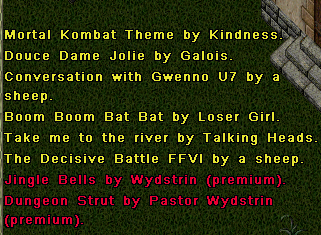
Yellow titles are yours to play: free songs, songs you have bought, and songs you composed. Red titles are premium songs, which cost gold.
To hear a premium song before buying it, ask the music box to play it:
Alexa, play strut
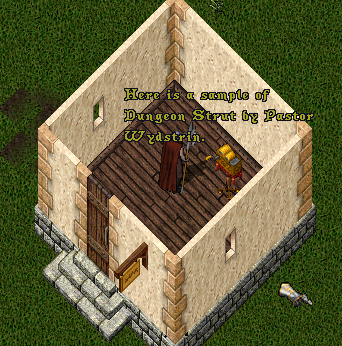
It plays a 10-second sample. To buy the song:
Alexa, buy strut
The music box walks you through the purchase:
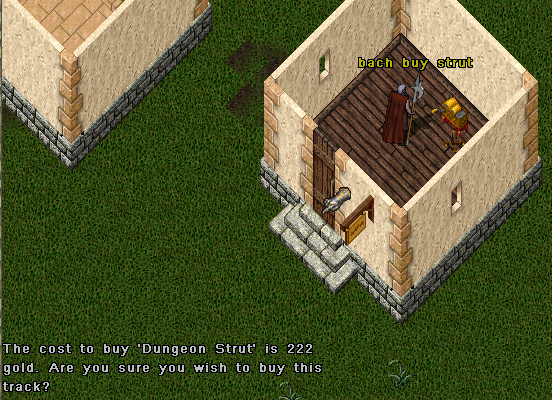
When you agree, the price is taken from your bank (or your shared bank accounts) and paid into the composer's bank, here Pastor Wydstrin's. In this screenshot the player has named the music box Bach, and asked for the song by part of its name.
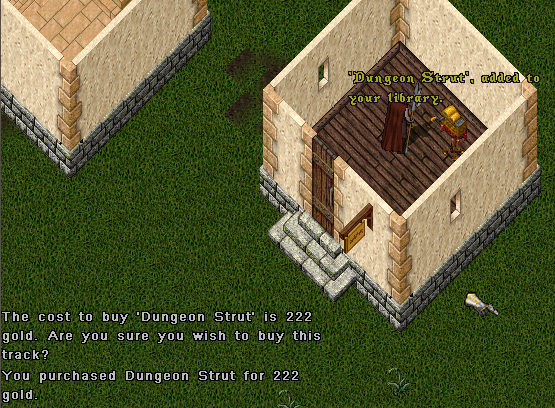
The song is now in your library and your playlist, ready to play:
- Your library is every song you have access to.
- Your playlist is the songs from your library that the music box plays. You might take the Christmas songs out of it in July. Remove takes a song out; add puts it back.
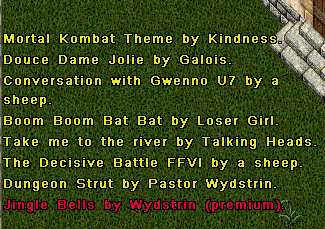
List of Commands
Say the music box's name, then the command. Several commands have a second word that does the same thing.
| Say | What it does |
|---|---|
| play song | Plays a song from your library, or a 10-second sample of one you don't own. |
| stop (or cancel) | Stops playing. |
| pause | Pauses. |
| resume (or continue) | Resumes after a pause. |
| what (or who) | Says the song and its composer. |
| next, previous | The next or previous song in your playlist. |
| repeat | Plays the last song again. |
| loop | Plays your playlist over and over. |
| shuffle | Shuffles your playlist. |
| list | Lists the songs. |
| new | Lists recently approved songs. |
| buy song | Buys a premium song. |
| remove song (or ignore) | Takes a song out of your playlist. |
| add song | Puts a removed song back. add alone is the same as submit. |
| refresh | Adds new free songs to your library. This also happens on its own. |
| purchases | The songs you have bought. |
| sales | Your sales as a composer (see Getting Paid). |
| submit (or add) | Publishes a song (see Instructions for Composers). |
| remaster | Asks to replace one of your approved songs with a new version. |
| rename | Renames the music box. |
| help | Lists the commands. |
Instructions for Composers
The Music Box is how composers share and sell their work across the shard.
- Write your song in a composition book and transcribe it into Sheet Music. Set its name and price at the top of the composition with # Song: and # Price: (a price of 0 makes it free). See Settings for every setting.
- Single-click your music box and choose Add, or say submit (or just add). Target your sheet music.
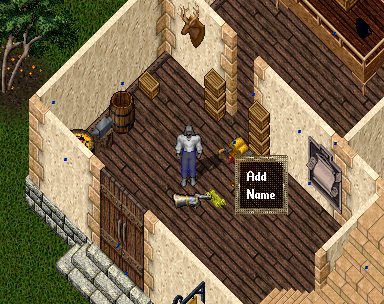
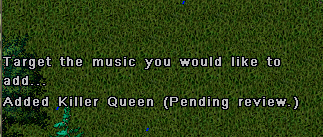
Your song is now in the shard-wide library, not just your own music box, and goes into a review queue. Staff review songs to keep out offensive content, not to judge their quality (songs can have lyrics). While it waits, you can still play it on your own music box: it is in your playlist, and the box says it is pending approval. Once approved, it appears for every player: free songs in their libraries, premium songs as red titles they can sample and buy.
Each approved song earns you Music Karma, and so does every sale and every play.
To publish a new version of an approved song, say remaster.
The library is permanent and not tied to your account: once a song is in, it stays available to other players. If the character who composed a song is deleted, the song becomes free.
Napster Tracks
A song transcribed with # Napster: True is passed hand to hand instead of sold. Anyone who has a copy of its sheet music can add it to their own music box, which gives them the song (the sheet is used up). Other players hear only a sample, and are told to get a copy from the composer.
Getting Paid
When a player buys your song, the price goes straight into your bank. Say sales to see your totals:
Alexa, sales
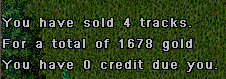
If your bank box can't take the gold, the sale is recorded as a credit to you instead, shown in your sales. Credits record unpaid song sales but cannot currently be collected. They are not available as withdrawable gold. Each new sale is paid in gold whenever your bank box has room for it.
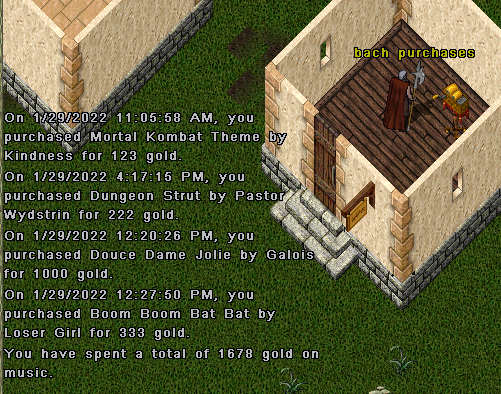
Say purchases to see the songs you have bought:
Alexa, purchases
Leaderboard
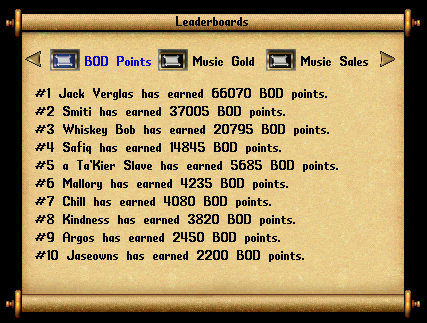
The Music Box records each composer's sales and the gold they have earned. The leaderboard at your local bank shows them.
Staff Reference
Staff use these commands to run the library. Players can't use them.
| Say | What it does | Access |
|---|---|---|
| review | Lists the songs waiting for review. | Owner |
| approve song | Approves a song: it becomes available to every player. | Owner |
| deny song | Rejects a song. | Owner |
| delete song | Removes a song from the library. | Owner |
| find song | Shows a song's serial number, owner, and name. | Owner |
| dupe song | Puts a copy of a song's sheet music in your backpack. | Seer |
| flushall | Removes every song, everywhere. | Owner, Test Center only |
History
The Music Box was designed and built by Adam Ant in 2022, inspired by his Amazon Echo: hence "Alexa". See History and Credits.